
💡 Why Processing Mode matters
Processing Mode controls whether one rule fires per comment or all matching rules fire. This is a global setting that affects every rule in your account. If it’s set incorrectly, your rules won’t stack - a comment can be hidden but never receive a DM, or get a reply but never get hidden. Always set this to Advanced before creating any rules.✅ Before you start
Processing Mode is a global setting - it applies to all rules across your entire account. You only need to set it once, but it must be set before your rules go live.⚠️ If you’ve already created rules and Processing Mode is still on Standard, your rules are not working as intended. Fix this first, then verify your rules are behaving correctly.
🔄 Standard vs Advanced - what’s the difference?
Standard mode
In Standard mode, Exerta stops processing after the first rule that matches a comment. Only one rule fires per comment, no matter how many rules would otherwise match. What this looks like in practice: A customer comments on your ad and matches two rules:- Rule 1: Comment Reply rule → Reply to the comment
- Rule 2: Comment to DM rule → Send a DM
⚠️ Standard mode creates silent gaps in your automation. You won’t see an error. Rules will appear to be working, but actions will be silently skipped.
Advanced mode
In Advanced mode, Exerta processes every rule that matches a comment. All matching rules fire. What this looks like in practice: The same customer comments on your ad. With the same two rules:- Rule 1: Comment Reply rule → Reply to the comment ✅ fires
- Rule 2: Comment to DM rule → Send a DM ✅ fires
💡 Advanced mode is the only mode that allows rules to stack. Hide + reply, hide + DM, reply + DM - none of these combinations work correctly in Standard mode.
🛠️ How to set Processing Mode to Advanced
- Go to Settings > config
- Find Processing Mode
- Select Advanced
- Save your changes
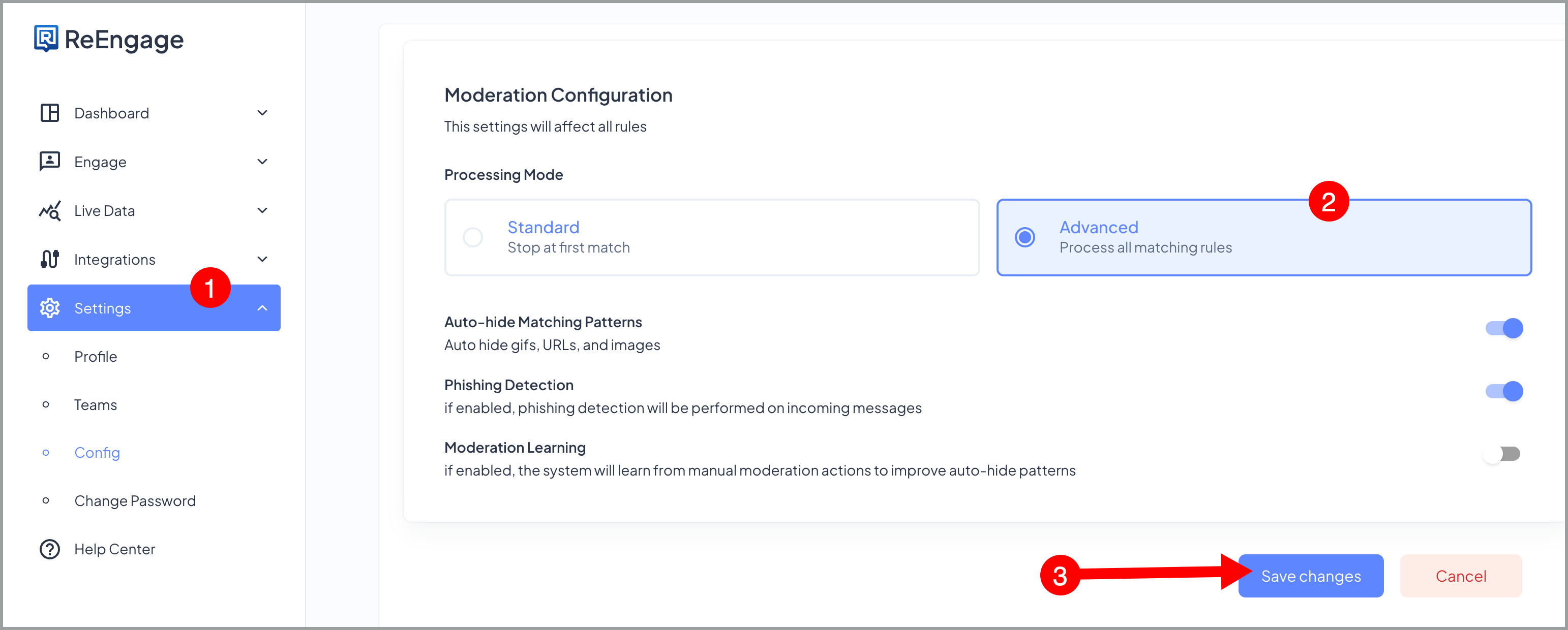
✅ You’re done when Processing Mode shows Advanced in your Moderation Configuration settings.
🔧 Other moderation configuration settings
These settings live on the same screen as Processing Mode. Review each one when you first set up your account.Auto-hide Matching Patterns
What it does: Automatically hides comments that contain GIFs, URLs, or images. Recommendation: Turn this on.Phishing Detection
What it does: Screens incoming messages for phishing patterns. Recommendation: Enable this if it is relevant to your account. If you are unsure, check with your Exerta team.Moderation Learning
What it does: Learns from manual moderation actions your team takes. For example, when you manually hide a comment, and uses that to improve automatic hiding over time. Recommendation: Turn this on. The system learns from your team’s manual moderation actions and uses that to improve automatic hiding over time.❓ FAQs
⚙️ Q: What is Processing Mode in Exerta? Processing Mode is a global setting that controls how many rules fire when a comment matches more than one rule. In Standard mode, only the first matching rule fires. In Advanced mode, every matching rule fires. Processing Mode applies to all rules across your entire account and should always be set to Advanced.🔍 Q: What happens if I leave Processing Mode on Standard? If Processing Mode is left on Standard, only the first rule that matches a comment will fire. Any additional rules that would also match are silently skipped. For example, a comment that should be hidden and trigger a DM will only receive one of those actions, whichever rule is processed first. You won’t see an error, so it’s easy to miss. Always set Processing Mode to Advanced before creating rules.
⚙️ Q: I already have rules set up. Do I need to recreate them after changing to Advanced? No. Changing Processing Mode to Advanced does not affect your existing rules. It changes how they are processed going forward. Your rules will remain exactly as configured - Advanced mode simply allows all matching rules to fire rather than stopping after the first one.
🔍 Q: Where do I find Processing Mode in Exerta? Processing Mode is located at Settings > Moderation Configuration. It is a global setting, meaning it applies to all rules across your account. Set it to Advanced before creating any rules.
⚙️ Q: Does Processing Mode affect hide rules and DM rules differently? No. Processing Mode applies equally to all rule types, including hide rules, reply rules, DM rules, and any combination of them. In Advanced mode, if a comment matches a hide rule and a DM rule simultaneously, both will fire. In Standard mode, only one would fire.
🔍 Q: Should I turn on Auto-hide Matching Patterns, Phishing Detection, and Moderation Learning? For most accounts, yes to all three:
- Auto-hide Matching Patterns - turn on to automatically remove spam URLs, GIFs, and image comments without needing a separate rule
- Phishing Detection - turn on if you run active ad campaigns or receive high DM volume
- Moderation Learning - turn on to help the system improve auto-hide accuracy over time based on your team’s manual actions