
💡 Why use this?
Sentiment detection catches most negative comments, but some things you always want hidden regardless of tone: competitor names, spam phrases, politically sensitive terms, or specific phrases that signal a comment should be removed. Keyword hiding gives you direct control over this.✅ Before you start
- Make sure Processing Mode is set to Advanced in Settings > Config
- This is a separate rule from your sentiment hide rule. It’s recommended to have both for better coverage
🔧 How to set up a keyword hide rule
-
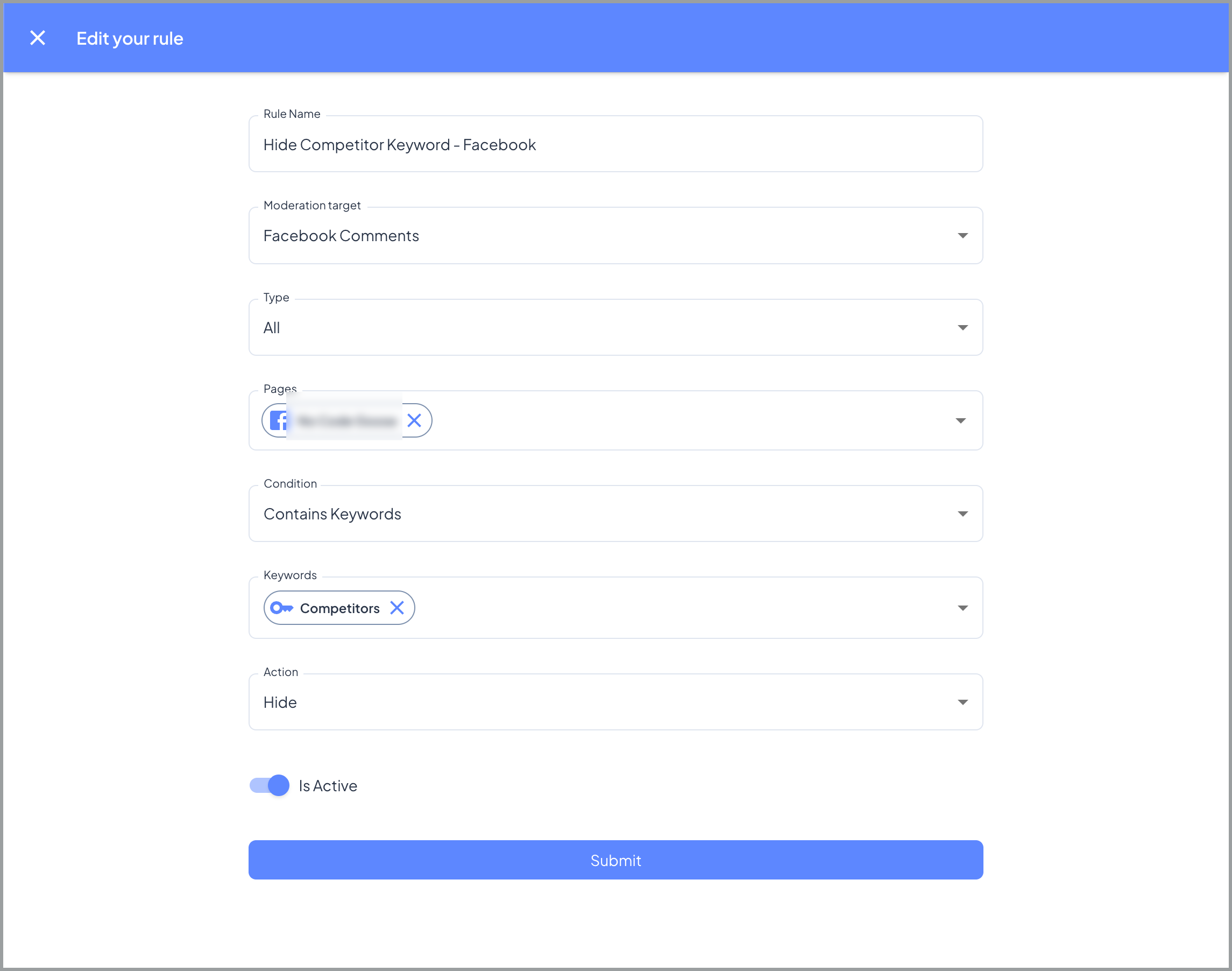
Go to Moderation > Rules > Create Rule

- Give the rule a name (e.g. “Hide Keywords - Facebook”)
- Set Moderation Target to Facebook Comments (or Instagram Comments)
- Select whether this rule applies to paid engagement, organic engagement, or all
- Select the pages this rule applies to, or click Add all pages
- Set Condition to Contains Keywords
- Add your keywords in the Conditions section
- Set Action to Hide comment
- Submit the rule
 📋 Known limitation: Keywords must be entered one at a time. Bulk paste is not currently supported. If you reach the keyword limit on a keyword group, create a second group.
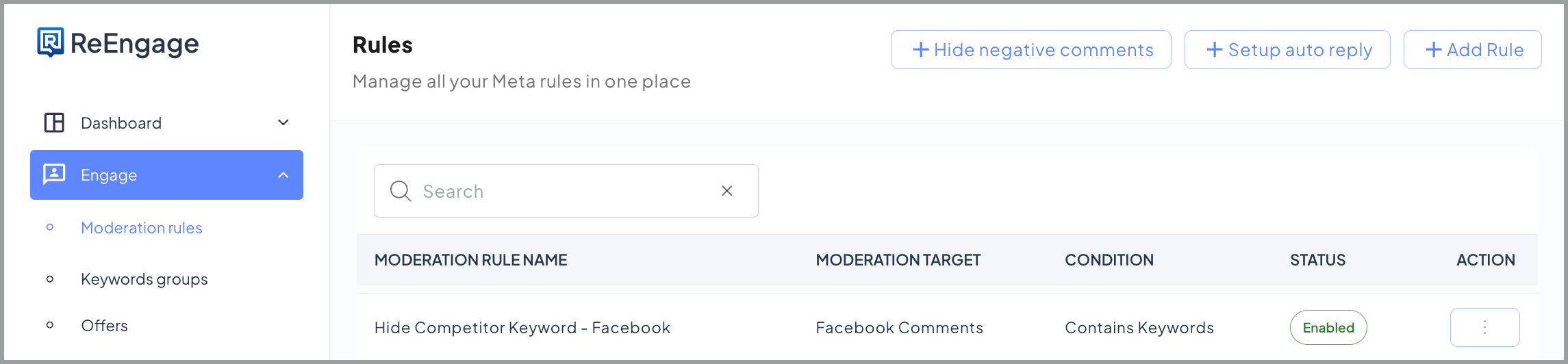
You’re done when the rule appears in your rules list and shows as enabled.
📋 Known limitation: Keywords must be entered one at a time. Bulk paste is not currently supported. If you reach the keyword limit on a keyword group, create a second group.
You’re done when the rule appears in your rules list and shows as enabled.
📋 What to include in your keyword list
Common use cases for keyword hiding:- Competitor names - hide any comment that mentions a competitor
- Spam phrases - repeated phrases used by bots or spammers
- Politically sensitive terms - words you never want associated with your brand
- Specific multi-word phrases - for example, “story worth.” A two-word phrase that can’t be caught by hiding either word independently
📋 Platform rules to know
You need a separate keyword hide rule for each platform. The Moderation Target field locks a rule to one platform. A Facebook Comments rule won’t catch Instagram comments, and vice versa. Set up duplicate rules if you want keyword hiding on both.📋 Note: The keyword hide rule is a separate rule from your standard “Hide all negative comments” rule. You cannot combine both into one rule. Each must be created independently.
❓ FAQs
🔍 Q: How do I hide comments containing a competitor’s name? To hide comments containing a competitor’s name, add the competitor’s name as a keyword in your keyword hide rule.- Go to Moderation > Rules and open your keyword hide rule
- Go to the Conditions section and add a keyword group if you don’t have one yet
- Add each competitor name as a separate keyword entry
- Save the rule
📋 Note: If you reach the keyword limit on a group, create a second keyword group.
🔍 Q: Why isn’t the keyword rule hiding comments containing that word? If comments containing a keyword aren’t being hidden, check these things:
- Wrong platform: Confirm the Moderation Target on your rule matches the platform where the comment appeared. An Instagram rule won’t catch Facebook comments.
- Wrong condition: Make sure the condition is set to Contains Keywords, not a combined condition like “Keywords and Sentiment Match”
- Keyword not saved: Confirm the keyword was actually saved in the rule. Keywords must be added one at a time.
🔍 Q: What’s the difference between keyword hiding and sentiment hiding? Keyword hiding and sentiment hiding work differently and you need both for full coverage.
- Keyword hiding fires when a comment contains a specific word or phrase you’ve defined, regardless of the sentiment the AI detects
- Sentiment hiding fires when the AI detects negative sentiment, regardless of whether the comment contains a keyword
🔍 Q: If I have a DM rule turned on for negative comments, will hiding a comment containing a keyword stop a DM from being sent to that commenter? Hiding a comment does not stop other rules from firing as long as Processing Mode is set to Advanced. If a DM rule also matches the comment, the commenter will still receive the DM even though their comment is hidden from public view.
🔍 Q: How does the keyword hide rule work together with my other rules? You need a separate keyword hide rule and a separate sentiment hide rule. They cannot be combined into one rule. When Processing Mode is set to Advanced, both rules fire on the same comment, so a comment is caught whether it contains a keyword or is detected as negative by sentiment.