
Why set up a custom domain?
When Exerta sends a reply containing a link, it generates a unique short link for each reply to track clicks. By default, those links use a Exerta domain, which can look unfamiliar to the person clicking. Adding a custom domain means your tracking links appear to come from your own brand (e.g. promo.yourbrand.com). The redirect to your offer URL still happens automatically in the background, but the link your customers see appears to belong to your business. We strongly recommend setting up a custom domain. Exerta-branded links create two problems:- People won’t recognise the Exerta name and are less likely to click
- If they search for Exerta they’ll find it’s an AI software product - which can undermine trust and hurt performance
Before you start
- Have access to your domain registrar (e.g. GoDaddy, Cloudflare, Namecheap) as you’ll need to add a DNS record
- Decide on your subdomain name (e.g. promo, links, go)
- Custom domain is not enabled by default. Your Exerta team will let you know when it has been activated on your account
yourbrand.com) to Exerta would disrupt your main website.
Confirm your account is ready
Custom domain is not enabled by default. Your Exerta team will confirm when it has been activated on your account before walking you through the next steps. Once your team confirms it’s ready, proceed to the next step. Here’s what it looks like once custom domain is enabled.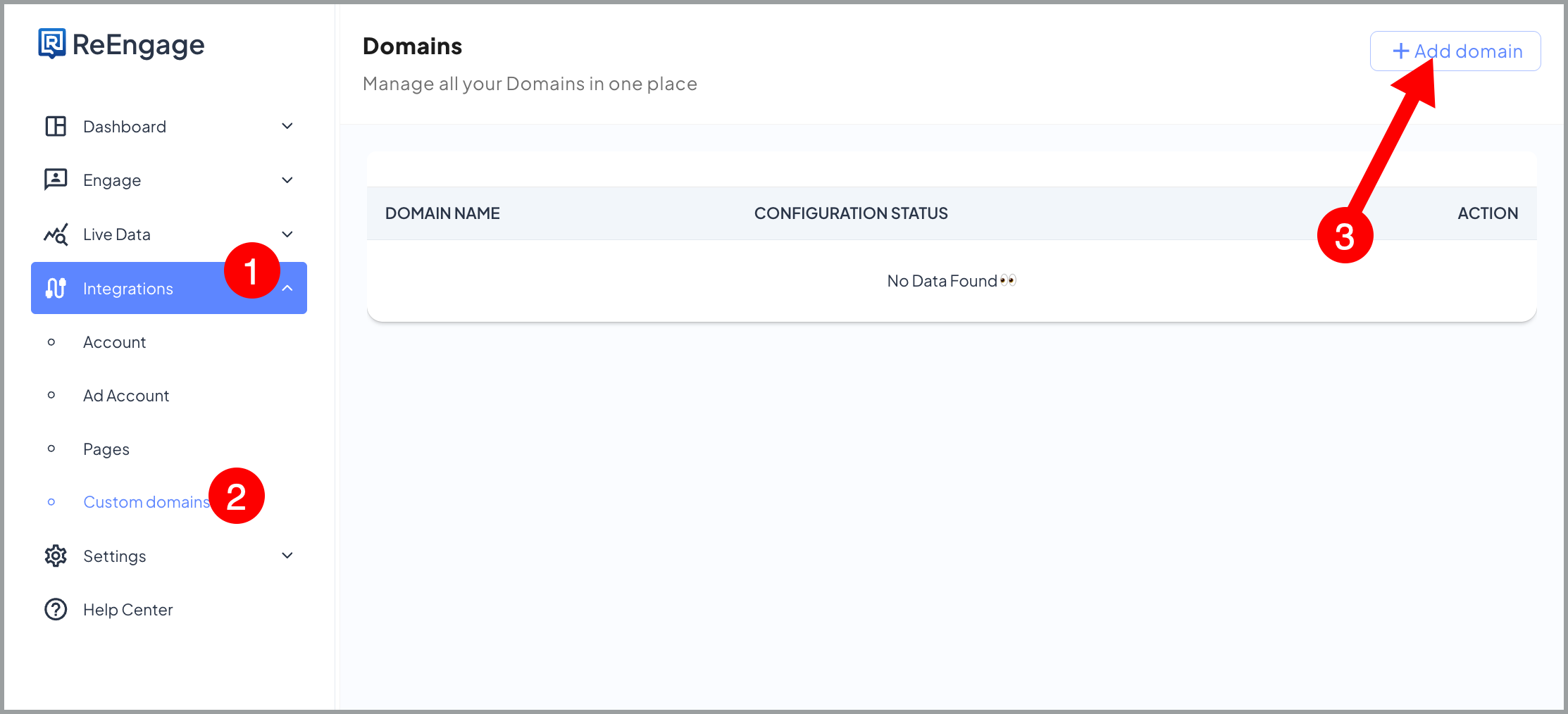
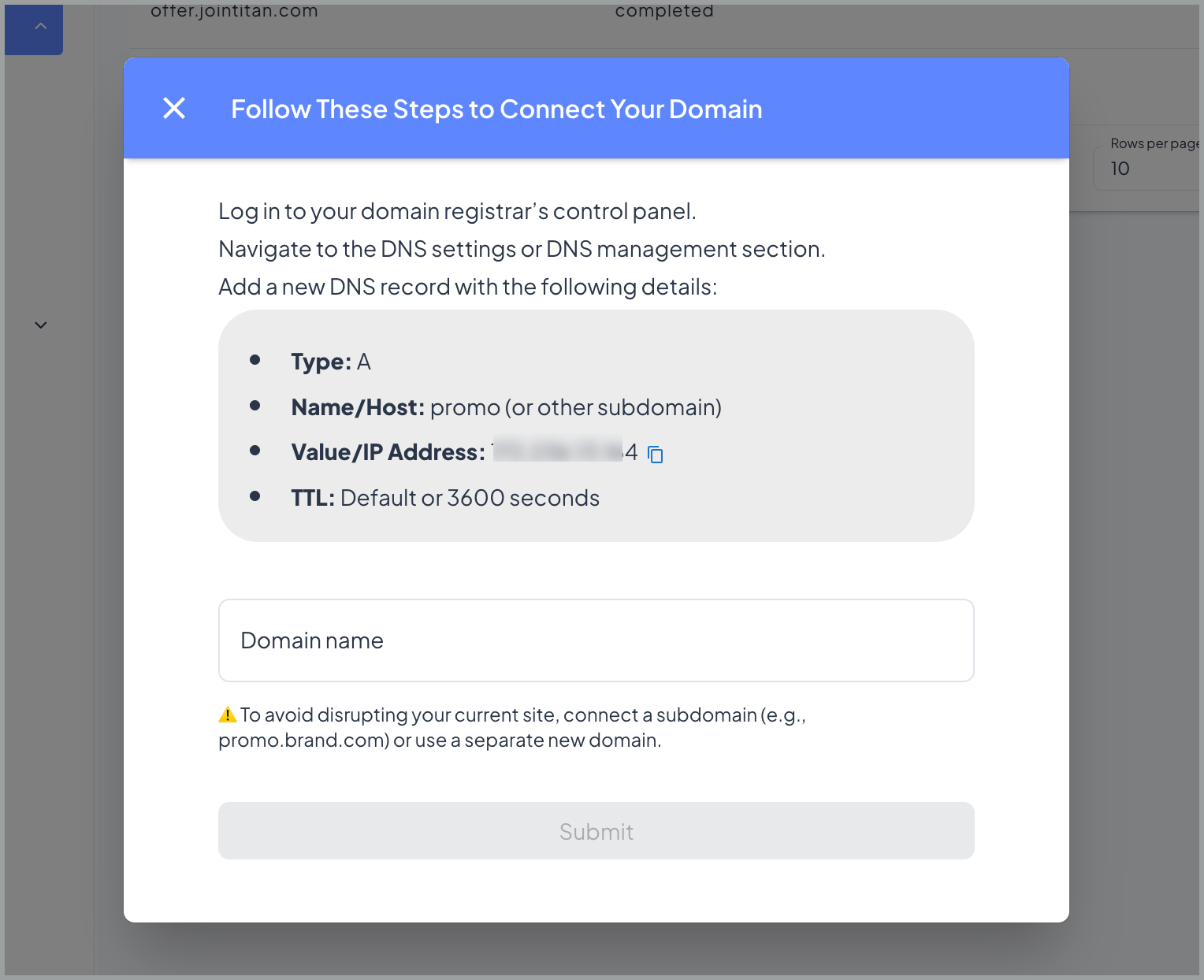
Set up your DNS record
Before submitting your domain in Exerta, you need to add a DNS record at your domain registrar.Step 1 - Log in to your domain registrar
Log in to wherever your domain is registered (e.g. GoDaddy, Cloudflare, Namecheap) and navigate to your DNS settings.Step 2 - Add a new A record
Add a new A record with the following details: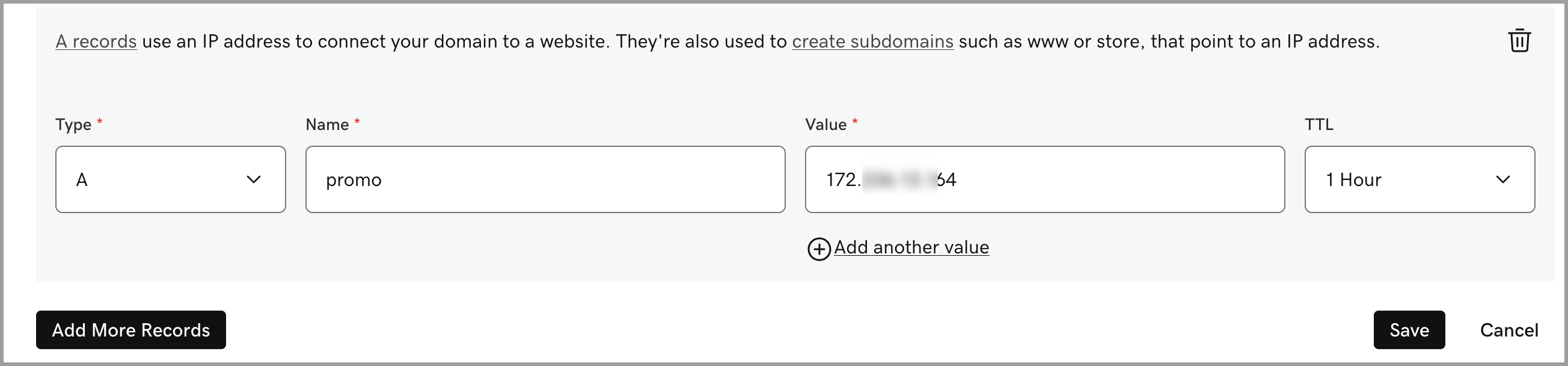 📋 DNS changes can take time to propagate - from a few minutes to up to 48 hours depending on your registrar and TTL setting. If the domain doesn’t verify immediately, wait and try again.
⚠️ Using Cloudflare? Make sure the proxy is turned off (set to “DNS only” - grey cloud, not orange) before submitting. You can re-enable it after setup is complete.
📋 DNS changes can take time to propagate - from a few minutes to up to 48 hours depending on your registrar and TTL setting. If the domain doesn’t verify immediately, wait and try again.
⚠️ Using Cloudflare? Make sure the proxy is turned off (set to “DNS only” - grey cloud, not orange) before submitting. You can re-enable it after setup is complete.
Submit your domain in Exerta
Once the DNS record is added:- Go to Integrations > Custom domains
- Click + Add domain
- Enter your full domain name in the Domain name field (e.g.
promo.yourbrand.com) - Click Submit
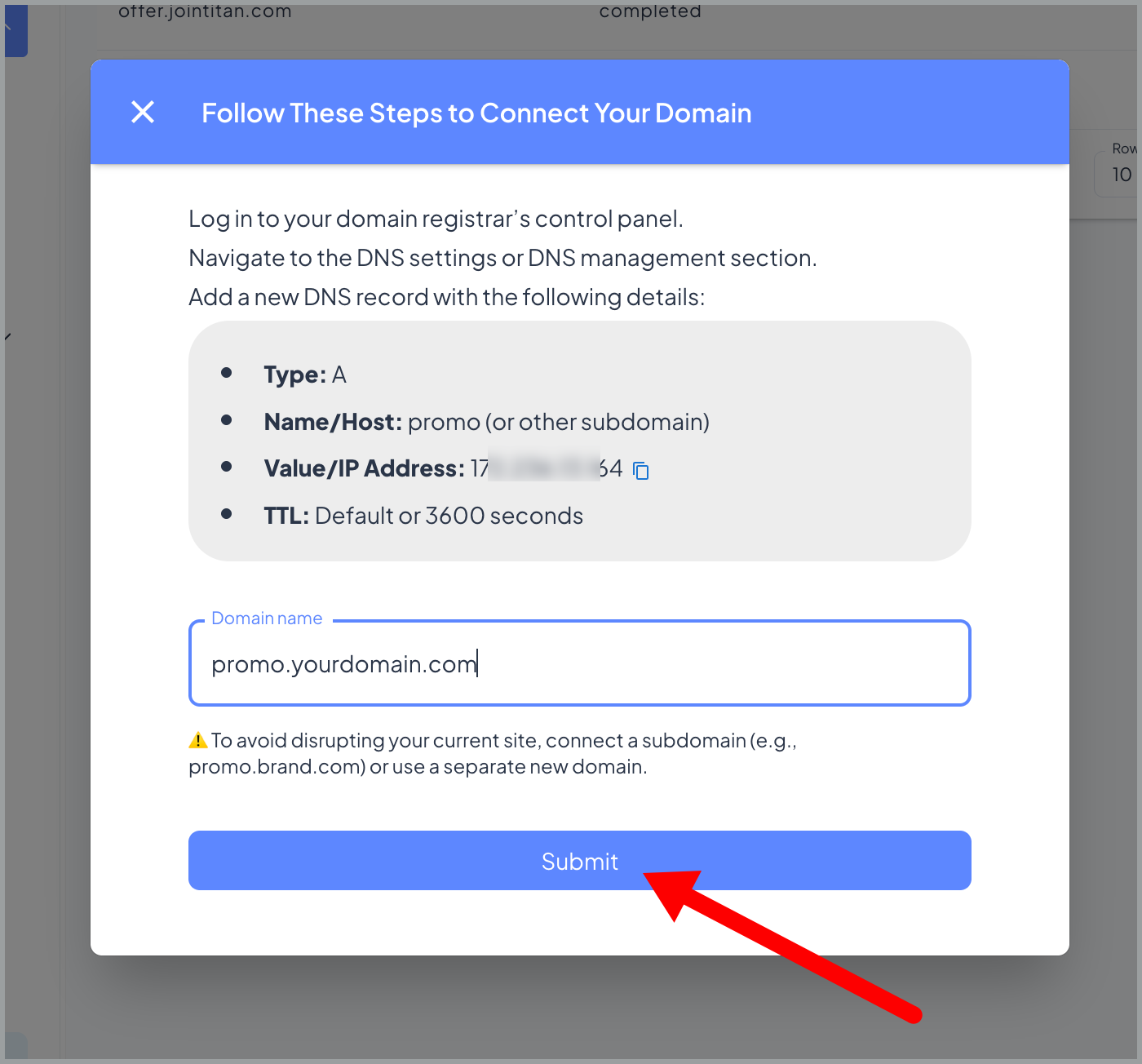 Please let us know once you’ve done this so we can check and help troubleshoot if needed.
✅ You’re done when your domain appears in the Domains list and reaches Completed status.
Please let us know once you’ve done this so we can check and help troubleshoot if needed.
✅ You’re done when your domain appears in the Domains list and reaches Completed status.
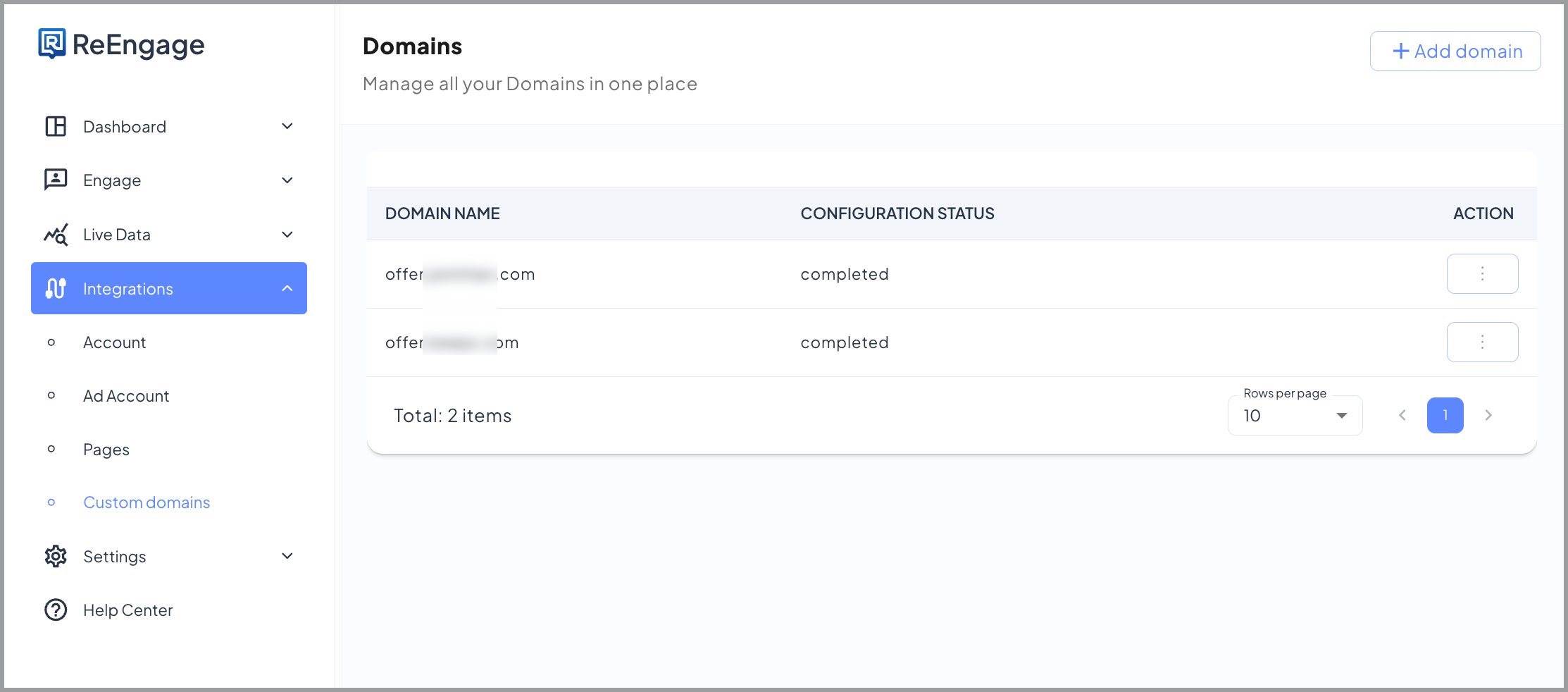
Domain status explained
After submitting, your domain will appear in the Domains list with one of the following statuses:Cloudflare users
If your domain is managed through Cloudflare, two settings commonly cause custom domain setup to fail. Read this section before submitting your domain in Exerta.The proxy must be off during setup
Each DNS record in Cloudflare has a proxy toggle. An orange cloud means the proxy is on. A grey cloud means it is off (“DNS only”). The proxy must be set to grey cloud / DNS only before you submit your domain in Exerta. Leaving it on will cause both DNS validation and SSL provisioning to fail, even if your DNS record is correct. You can re-enable the proxy after your domain reaches Completed status.If DNS validation fails
What you’ll see: “We couldn’t find the A Record pointing to our server” or “Domain does not point to the correct IP”- Log in to Cloudflare and go to DNS > Records
- Find the A record for your subdomain (e.g. promo, links, go)
- Click the orange cloud to toggle it to grey (“DNS only”)
- Wait a few minutes
- Return to Exerta and try submitting again
If DNS passes but the domain stays on Pending
This means SSL provisioning has failed. The Cloudflare proxy is the most common cause, even when DNS validation passed.- Log in to Cloudflare and go to DNS > Records
- Confirm the A record for your subdomain is set to grey cloud (“DNS only”)
- If it was orange, turn it off, wait a few minutes, and re-submit in Exerta
- Once your domain reaches Completed, you can re-enable the proxy
Other common DNS issues
- Confirm you have added the DNS A record at your registrar
- If you just added it, DNS propagation may not have completed yet. Wait a few minutes and try submitting again
- Double-check the IP address in your DNS entry matches exactly what is shown in the Exerta setup modal
- If using Cloudflare, see the Cloudflare section above
- Confirm the exact domain you entered (e.g. promo.yourbrand.com)
- If it looks correct, wait a few minutes and try submitting again
- Check for CAA records on your domain
- Remove any that might be blocking Let’s Encrypt
- Re-submit your domain in Exerta
- Remove any parking pages from your registrar settings
- Re-submit your domain in Exerta
FAQs
🌐 Q: Do I need a custom domain for my agents to work? Agents work without a custom domain. By default, tracking links use a Exerta domain and clicks are still tracked. That said, a custom domain is strongly recommended:- Exerta-branded links are less likely to be clicked because people don’t recognise the name
- If someone searches for Exerta they’ll find it’s an AI software product, which can undermine trust
- A custom domain will look more professional and perform better
🔍 Q: I added the DNS entry but it’s still not validating. What do I do? DNS propagation can take up to 30 minutes or occasionally longer after adding the entry.
- Wait a few minutes and try submitting again in Exerta
- Make sure the IP address in your DNS entry matches exactly what is shown in the Exerta setup screen
- If your domain is on Cloudflare, confirm the proxy is set to “DNS only” (grey cloud) before submitting
🔍 Q: What IP address do I put in the DNS settings? The IP address is shown in the Exerta setup screen when you click + Add domain. It is specific to your account, so always copy it directly from the Exerta modal.
📋 Q: Will my existing links break if I change or remove my custom domain? No. Any links already sent in comments or DMs will continue to work as normal. Adding a custom domain only affects new links going forward. Posted links are never deleted and will keep working regardless of domain changes.
⏳ Q: My domain status says “Pending”. Is something wrong? Pending means SSL provisioning is running in the background. This happens automatically and usually only takes a minute or two. No action is needed. It should move to Completed shortly. If it has been Pending for more than 15-20 minutes, contact your Exerta team.